
Pre-Setup Considerations
To utilize this feature please make sure you do not use the Form builder Map to option 'Custom Data 10'.
The following instructions are provided as a stand-alone solution for users of the platform who wish to require their guests to wait a specified amount of time before reconnecting through the splash page. Please note that we do not offer support for the steps described in this article.
- Login to your Smart WiFi Dashboard
- Use the menu to the left to navigate to Network > Splash Pages
- Click the blue edit icon for the Splash Page you want to add timed-limited access to the return guest splash page
- Click the Return Guest tab at the top of your screen
- Click the top content block of your page and then click the <> button on the menu bar to the left.
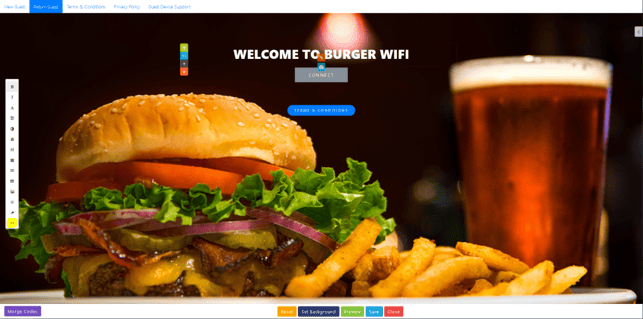
- Paste the following code into the HTML code window at the very bottom and press OK
- Save and Submit your Splash Page
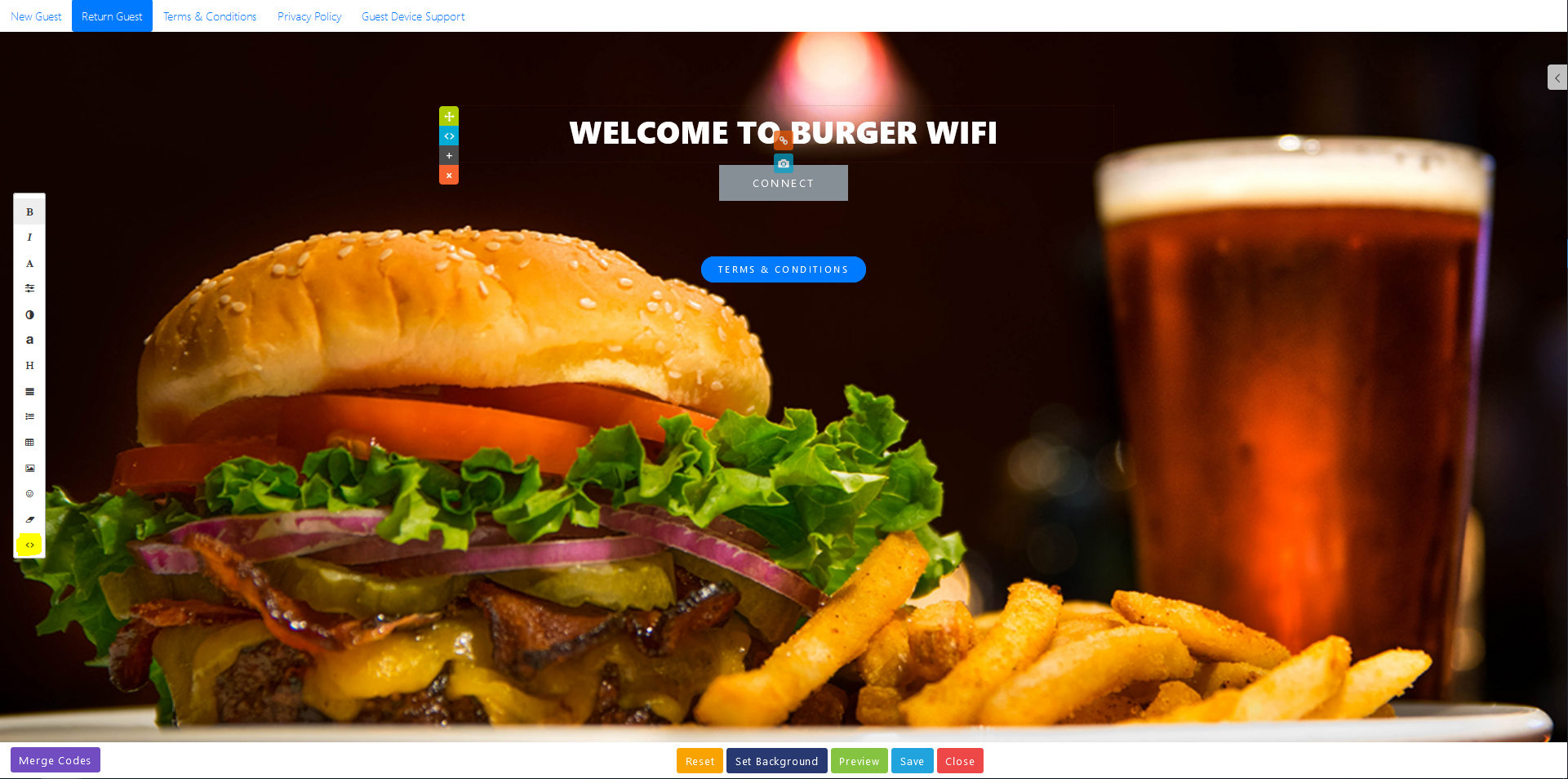
HTML Code Example
The script below is currently set to not allow another connection through the splash page until 24 hours from the last time the guest connected. To change this value look at line 122 of the script and adjust the value from 1440 to the number of minutes you want a guest to wait between connections.
<div id="timeTracker" style="display:none;"><p>[CUSTOM_10]</p></div>
<script>
document.addEventListener("DOMContentLoaded", function() {
if (window.location.href.includes("manageV2SplashPages")) {
return;
}
function getCurrentDateTime() {
const now = new Date();
const date = now.toLocaleDateString();
const time = now.toLocaleTimeString();
return `${date} ${time}`;
}
function createInputElement() {
const inputWrapper = document.createElement("div");
inputWrapper.className = "fb-text form-group field-custom10";
const label = document.createElement("label");
label.style.display = "none";
label.htmlFor = "custom10";
label.className = "fb-text-label";
label.textContent = "TimeTracker";
const input = document.createElement("input");
input.type = "text";
input.style.display = "none";
input.className = "form-control";
input.name = "custom10";
input.id = "custom10";
input.value = getCurrentDateTime();
inputWrapper.appendChild(label);
inputWrapper.appendChild(input);
return inputWrapper;
}
function removeExistingInput() {
const existingInput = document.getElementById("custom10");
if (existingInput) {
existingInput.parentElement.remove();
}
}
const renderedFormDiv = document.querySelector(".fb-rendered-form");
removeExistingInput();
if (renderedFormDiv) {
const form = renderedFormDiv.querySelector("form .rendered-form");
if (form) {
const inputElement = createInputElement();
form.appendChild(inputElement);
}
} else {
const formContainer = document.createElement("div");
formContainer.className = "col-md-12";
const renderedFormDiv = document.createElement("div");
renderedFormDiv.className = "fb-rendered-form";
const form = document.createElement("form");
form.action = "#";
form.id = "custom-data";
const renderedForm = document.createElement("div");
renderedForm.className = "rendered-form";
const inputElement = createInputElement();
renderedForm.appendChild(inputElement);
form.appendChild(renderedForm);
renderedFormDiv.appendChild(form);
formContainer.appendChild(renderedFormDiv);
document.body.appendChild(formContainer);
}
function parseDateTime(dateTimeString) {
try {
const dateTimePattern = /(\d{1,2})\/(\d{1,2})\/(\d{4}) (\d{1,2}):(\d{2}):(\d{2}) (AM|PM)/;
const match = dateTimeString.match(dateTimePattern);
if (!match) {
throw new Error("DateTime string does not match expected format.");
}
const [_, month, day, year, hourStr, minute, second, meridian] = match;
let hour = parseInt(hourStr);
if (meridian === 'PM' && hour !== 12) {
hour += 12;
} else if (meridian === 'AM' && hour === 12) {
hour = 0;
}
return new Date(year, month - 1, day, hour, minute, second);
} catch (error) {
console.error("Error parsing the date/time: " + error.message);
return null;
}
}
function disableButtonBasedOnTime() {
const timeTrackerDiv = document.getElementById("timeTracker");
const timeString = timeTrackerDiv ? timeTrackerDiv.textContent.trim() : "";
const connectButton = document.querySelector(".swp-connect");
if (!timeString) {
console.error("No time found in the timeTracker div.");
return;
}
const targetTime = parseDateTime(timeString);
if (!targetTime || isNaN(targetTime.getTime())) {
console.error("Invalid date detected. Please check the time format in the timeTracker div.");
return;
}
const currentTime = new Date();
const timeDifferenceInMinutes = (targetTime - currentTime) / (1000 * 60);
// Change the number below to the number of minutes you want a guest to wait between connections on the splash page
if (Math.abs(timeDifferenceInMinutes) <= 1440) {
if (connectButton) connectButton.disabled = true;
} else if (connectButton) {
connectButton.disabled = false;
}
setTimeout(function() {
const socialButtonDiv = document.querySelector(".swp-social-button");
const isSocialButtonHidden = socialButtonDiv && getComputedStyle(socialButtonDiv).display === 'none';
if (isSocialButtonHidden && connectButton) {
connectButton.disabled = false;
}
}, 1000);
}
disableButtonBasedOnTime();
});
</script>