
The Campaign Summary page provides a centralized location to review how all of your campaigns are performing. The page provides toggles to display the summary Smart or Scheduled Campaigns, by default all will be shown.
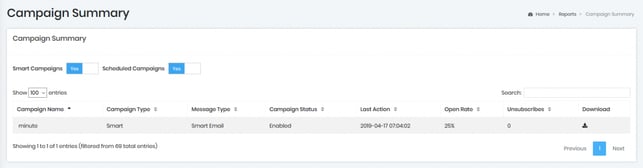 Campaign Summary Export Details
- Campaign Name: Displays the configured Campaign name.
- Campaign Type: Displays Smart or Scheduled for campaign type.
- Message Type: Email, SMS, or Twitter.
- Campaign Status: Displays the current status of the campaign.
- Last Action: Displays the last time the campaign was triggered.
- Open Rate: Displays the open rate for the life of the campaign.
- Unsubscribes: Displays the total unsubscribes received from the campaign.
- Download: Export a log of all Guests or Contacts who received a campaign.
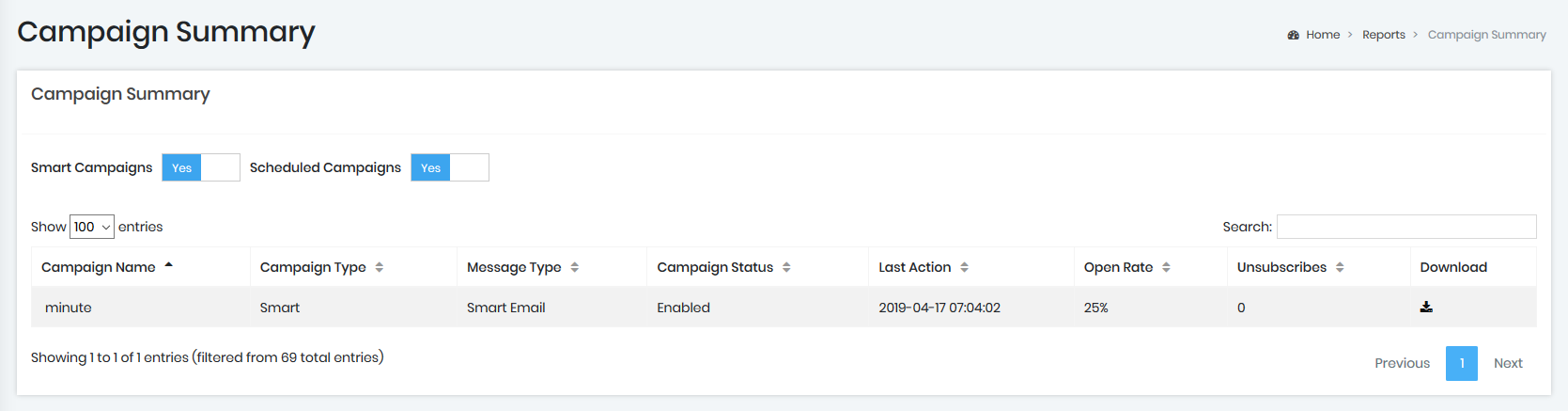 Campaign Summary Export Details
- The timestamps in the exported reports show the time the platform generated the campaign based on allowed rates by providers to the guest/contact. Any delays in sending caused after the platform has triggered the request by the SMTP provider, Twilio, or Twitter application will not be tracked by the report.
- The identity column of the export will prioritize the profile field that correlates to the Message Type. (Example- SMS export identity column will prioritize phone number.)If the field is not found or null, the next available value will be shown.