[ht_message mstyle="danger" title="" show_icon="" id="" class="" style="" ]Since Open-WRT is an open source package and there are many different nuances and variances, our support team does not provide any additional support beyond this document. Please refer to Open-WRT forums for additional configuration help. Please check the
hardware compatibility guide for a list of supported hardware.[/ht_message] This document describes the steps to configure the SmartWiFiPlatform with hardware that has been flashed with Open-WRT ChaosCalmer 15.05, later releases of Open-WRT may work.
Prerequisites
These prerequisite items must be completed prior to setting up your OpenWRT router with the SmartWiFi platform. Detailed steps and support are outside the scope of this document.- A browser on your computer. Such as Firefox, Chrome, Internet Explorer, etc.
- An SSH client on your computer. Such as: PuTTY (for Windows)
- A router capable of running OpenWRT. The ‘Table of Hardware’ is a good place to start: http://wiki.openwrt.org/toh/start
- You will need to install OpenWRT 15.05 or later (Chaos Calmer) on your router. If you are unfamiliar of how to do this, the OpenWRT website should be helpful to find information. **NOTE** It may be possible to utilize an older OpenWRT version with the Smart WiFi platform. However, that is outside the scope of this document.
- You will need the setup command below to configure your OpenWRT router to the Smart WiFi Platform.
wget 'http://dashboard.smartwifiplatform.com/OpenWRT/setup.php' -O setup.sh;sh setup.sh;rm setup.sh;
Initial OpenWRT Router Setup
Follow these steps to setup an initial root password and access to the router. If you have already configured the router for some other purpose, please verify you have access to it before skipping this section.- Ensure the router WAN port is connected to an functional Internet connection
- Connect to the router by:
- Associate your computer to the SSID: OpenWRT **NOTE** If your router has a physical switch to enable/disable the WiFi, you may need to press it to enable the WiFi before you can associate to the SSID.OR
- Connect an Ethernet cable from your computer to your router
- On your computer, open a browser and go to this URL for the OpenWRT router configuration: http://192.168.1.1
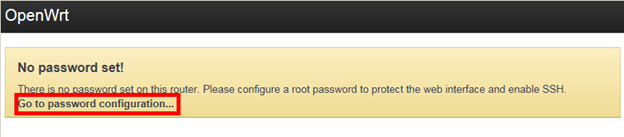
- You may also click the ‘Login’ button
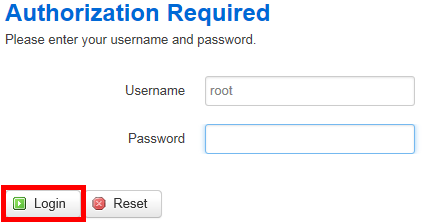
- Set the router password for the user: root
Make note of this password, you will need it to finish the setup. You will also need it to make any other configuration changes of your OpenWRT router in the future. Click the button: Save & Apply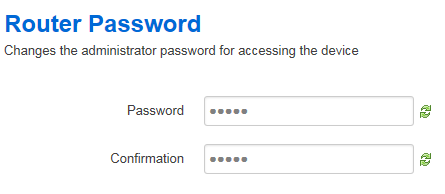

- Enable the Wireless Radio. Go to the openWRT 'Network' Menu pull-down and select 'WiFi'
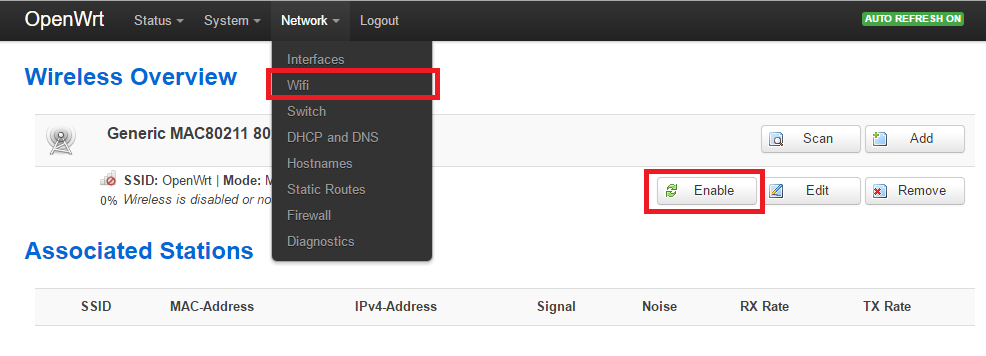
Connect to the router via SSH
For this section, you will need to use the SSH client software mentioned in the Prerequisites section above.- Open the SSH client (e.g. PuTTY on Windows) You can download the Putty utility from HERE
- Enter the Host: 192.168.1.1
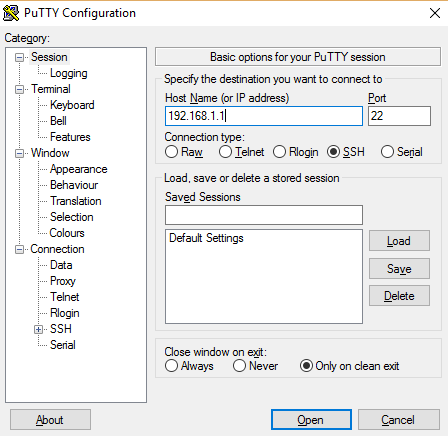
- Click ‘Connect’
- Accept any security alert you receive related to the “Host Key”. This is the SSH client informing you it does not yet know the host you are connecting to
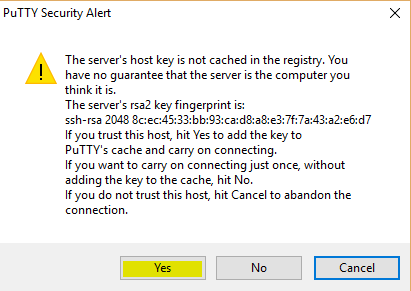
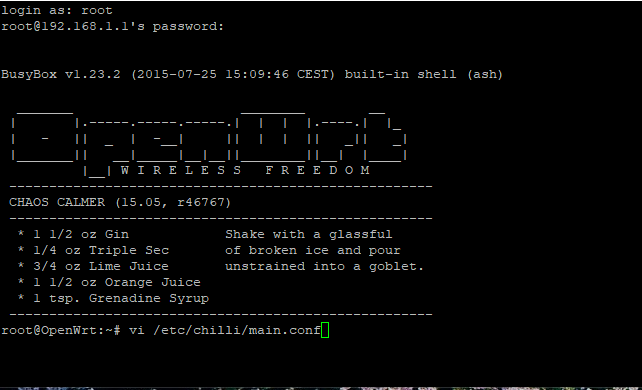
- Login with the username ‘root’ and the password you created above.

- At the command prompt, run the script that is presented to you in the Smart WiFi Platform.
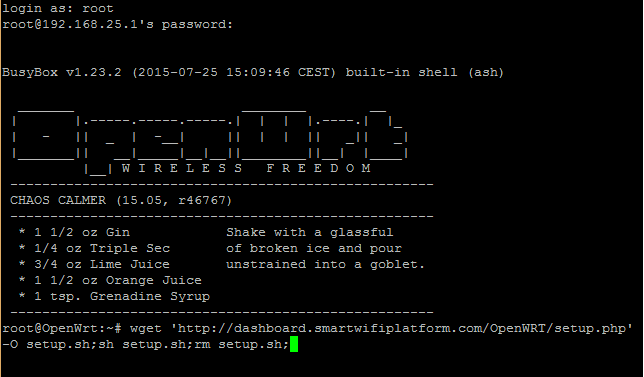
- BE SURE THAT YOUR ROUTER IS CONNECTED TO THE INTERNET BEFORE PRESSING ENTER. Press enter and the script will run.
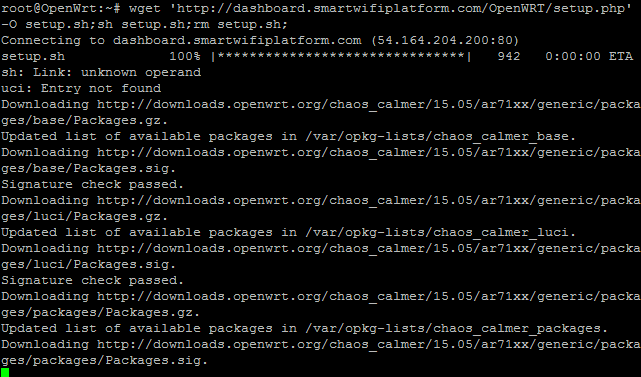
- After the script completes the router will reboot, please allow 5-10 minutes for the router to complete its first booting sequence. The WiFi signal should appear with the configured settings from the dashboard gateway page. Please test the splash page with a device using the email login now to ensure the device is working properly.[ht_message mstyle="alert" title="" show_icon="" id="" class="" style="" ]The following steps are to enter additional walled garden entries to allow for the different features available on the splash page. Please see the default walled garden or the payment walled garden list after deciding which features you are using. Please note you can not use wild card entries on Open-WRT devices (ex. *.smartwifiplatform.com)[/ht_message]
- Follow steps 1-5 to connect to the router again.
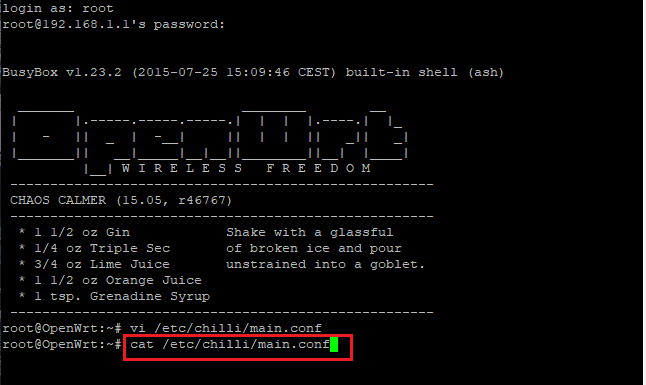
- At the command promt, run vi /etc/chilli/main.conf
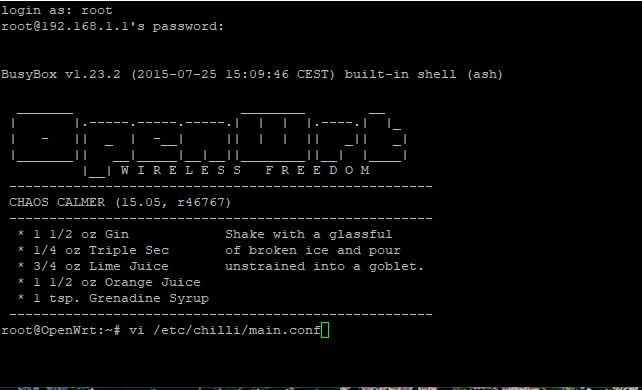
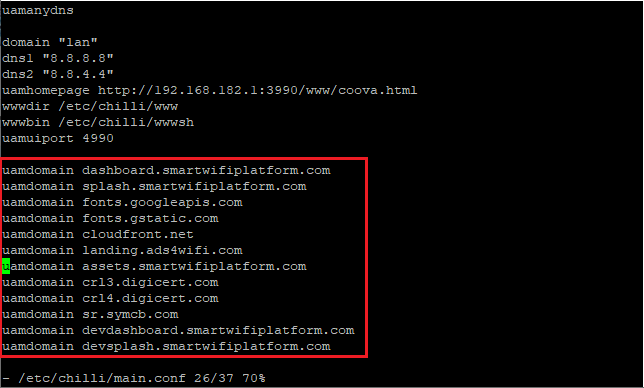
- Use the arrow keys to scroll down to the walled garden list.
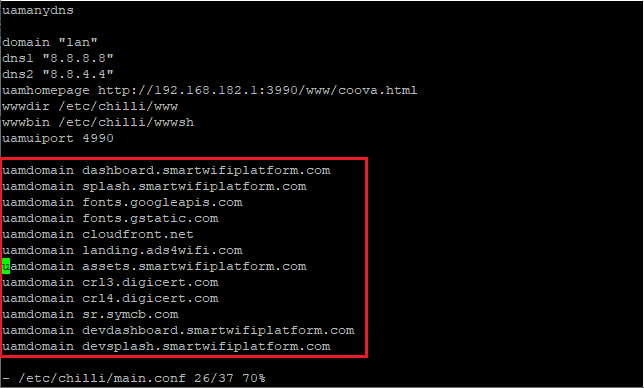 [ht_message mstyle="danger" title="" show_icon="" id="" class="" style="" ]We have heard that on various versions of Open-WRT the uamallowed entries must be updated to contain the walled garden entries as well.[/ht_message]
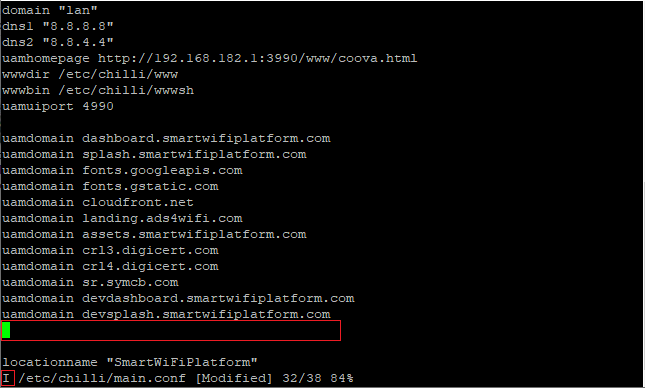
 - Press i to enable insert mode, you can now hit enter to create a new line.
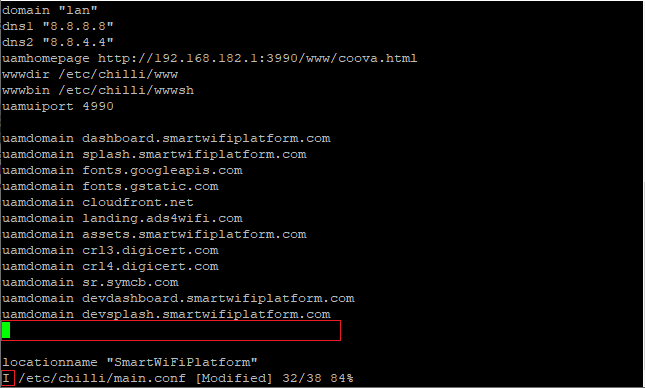
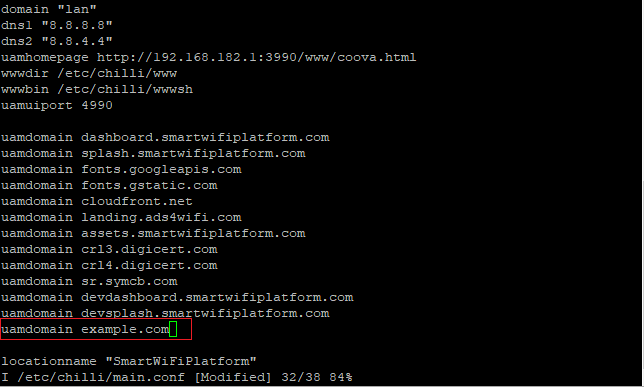
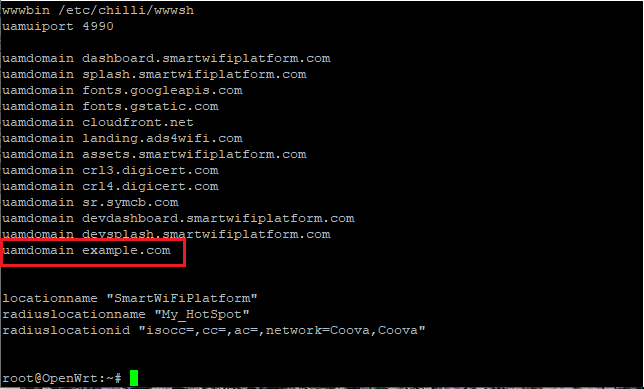
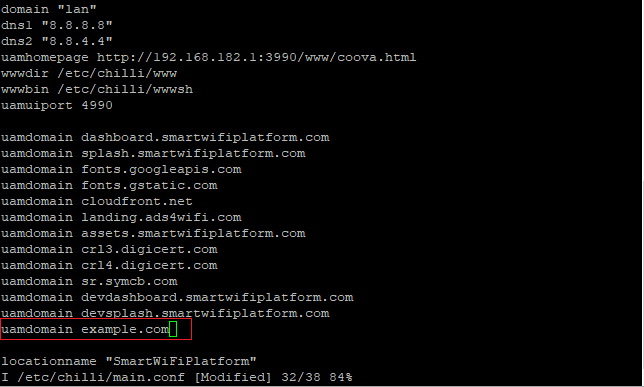
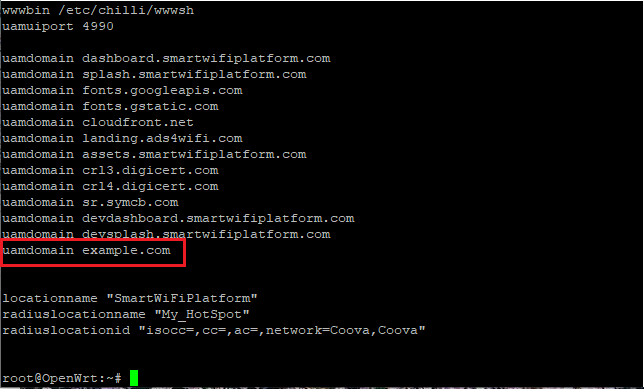
- Enter your desired walled garden entries in the following format: uamdomain example.com
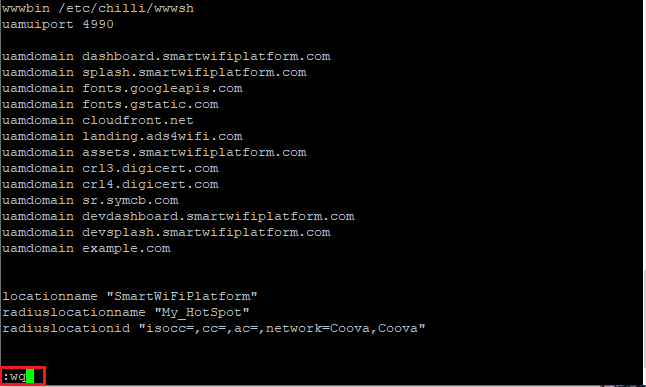
- After entering the desired entries, to hit the esc button then type :wq and press enter.
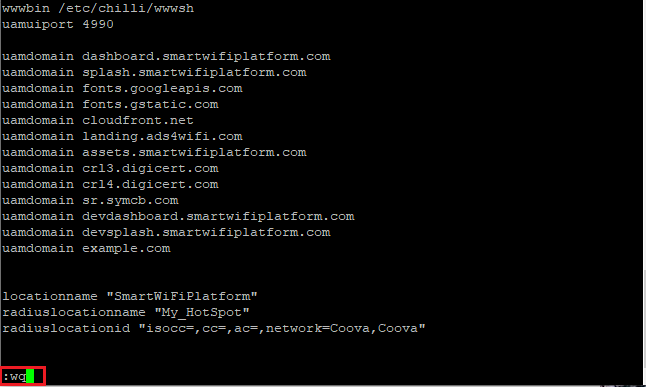
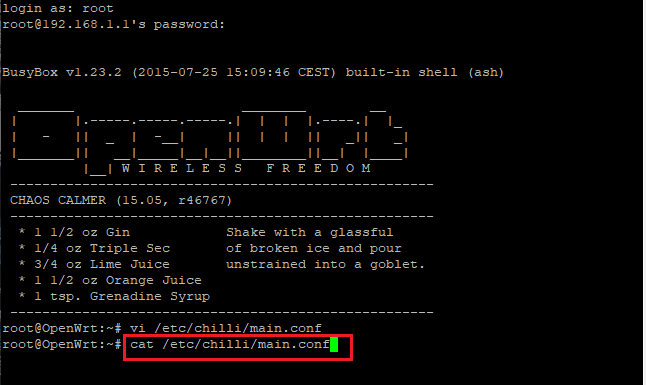
- To confirm the entries have been entered and saved correctly, from the command promt type cat /etc/chilli/main.conf
- You may need to reboot the device before changes take affect.