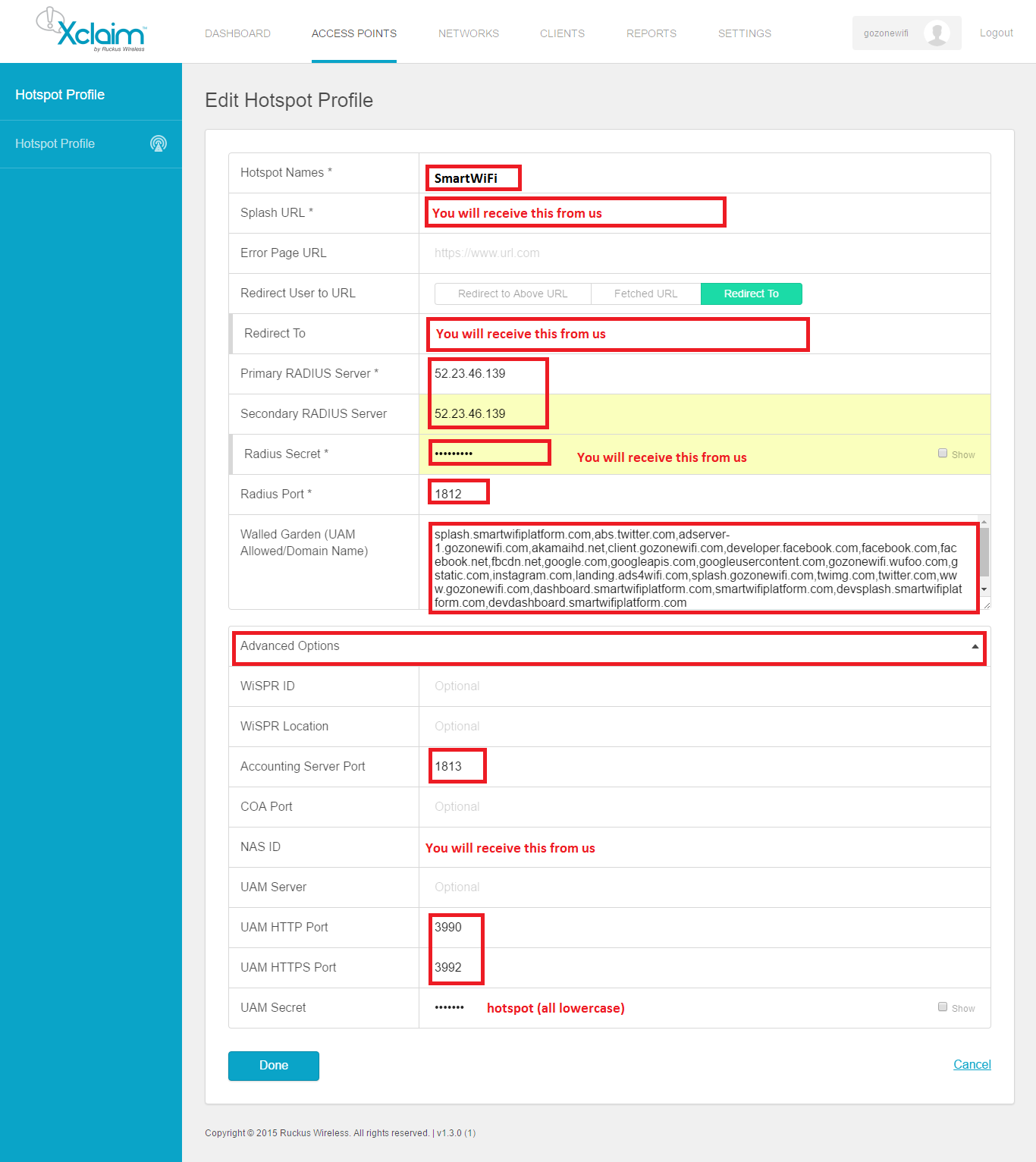
The following instructions outline how to setup a Ruckus xClaim network for the Marketing4WiFi Platform. This guide covers details such as configuring RADIUS, walled garden entries, and captive portals. This guide assumes that your xClaim is already operational and on a live network. Please make sure any firewall rules, web content filters, and other security measures have been configured to interface with the platform. Session bandwidth control will be handled directly from the Xclaim Cloud Manager. Be sure to set bandwidth limits directly in their Cloud control.
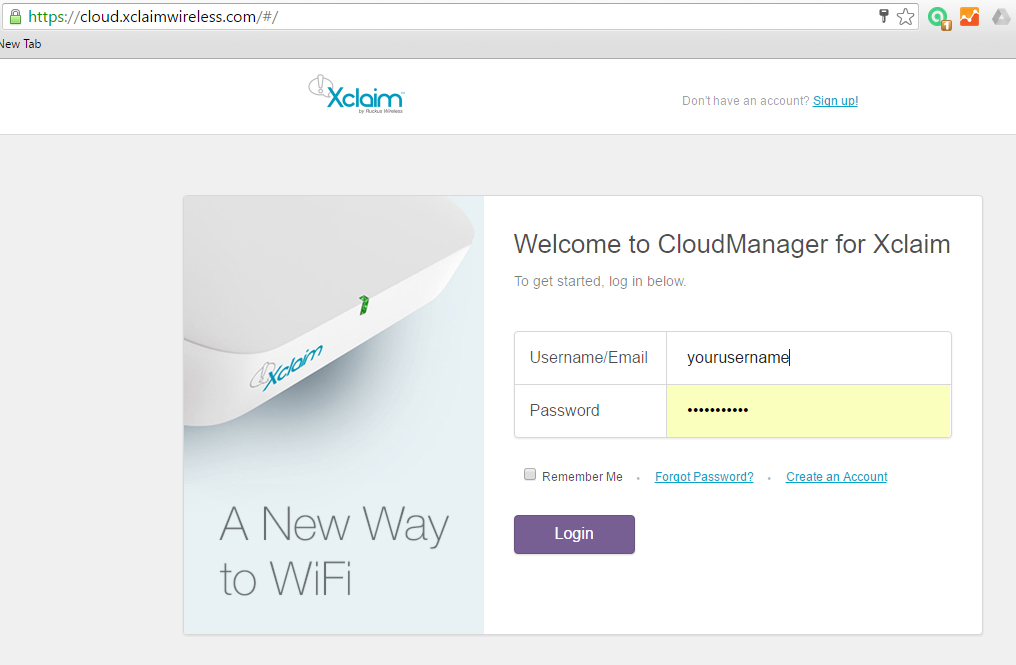
- Login to the Xclaim cloud control panel located at: https://cloud.xclaimwireless.com/
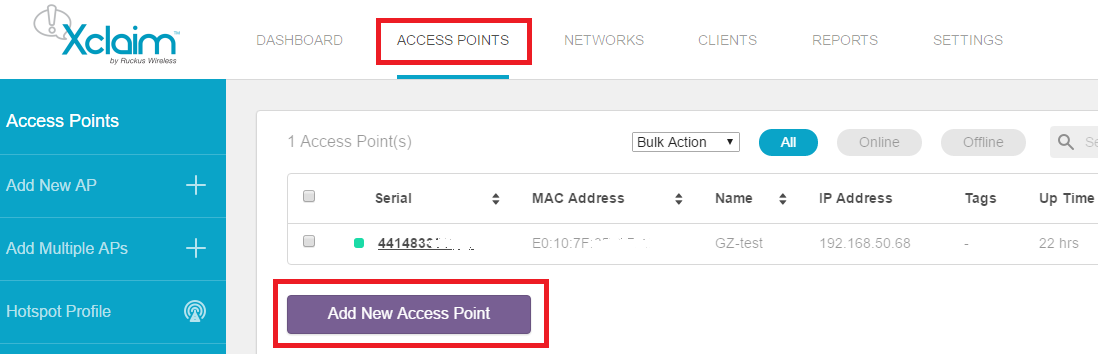
- Add a new Access Point
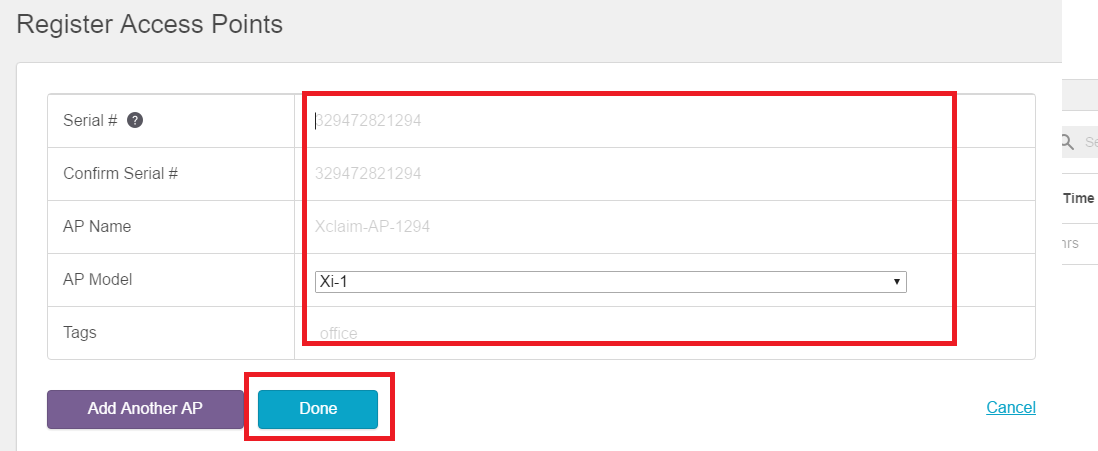
- Enter the AP Information, then click 'Done'
- Add a new Guest Network
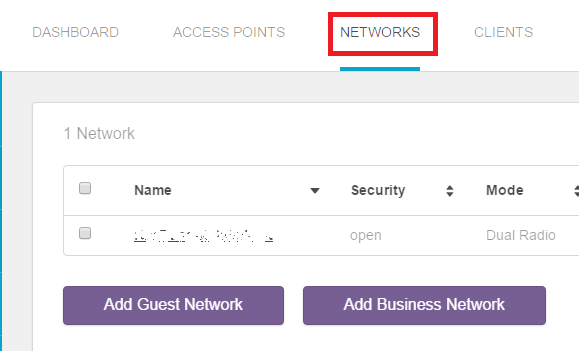
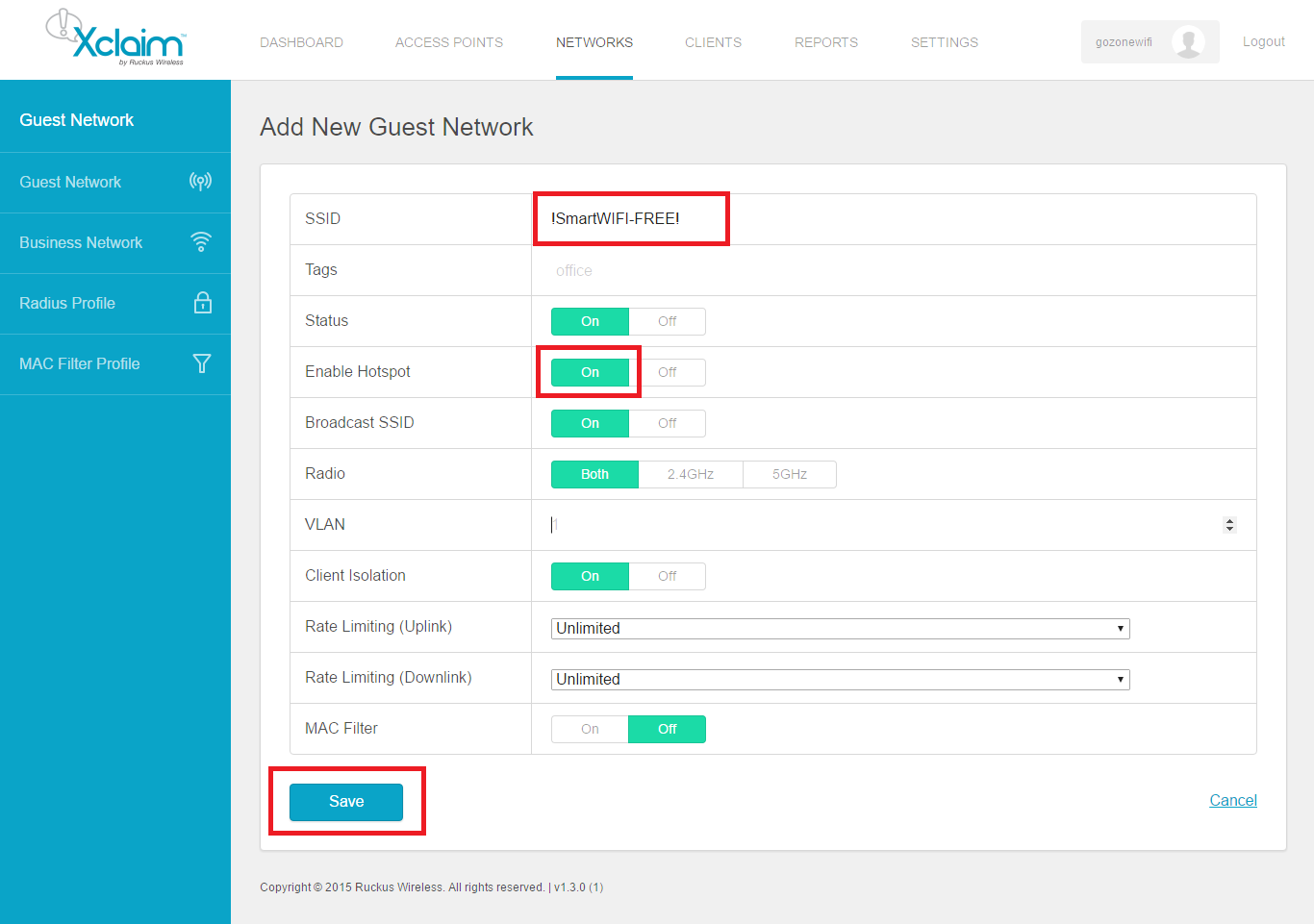
- Enter your desired broadcast SSID and set Enable Hotspot to 'On' - then save.
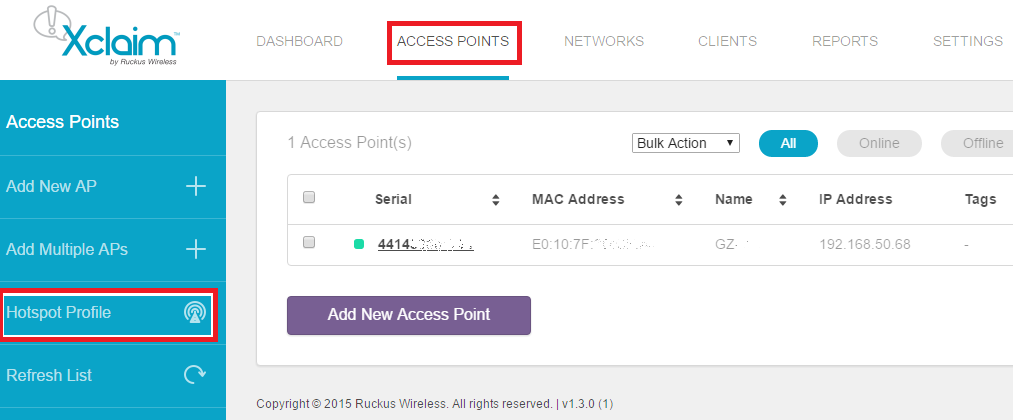
- Add a Hotspot Profile
- Click the 'Add Hotspot Profile' button
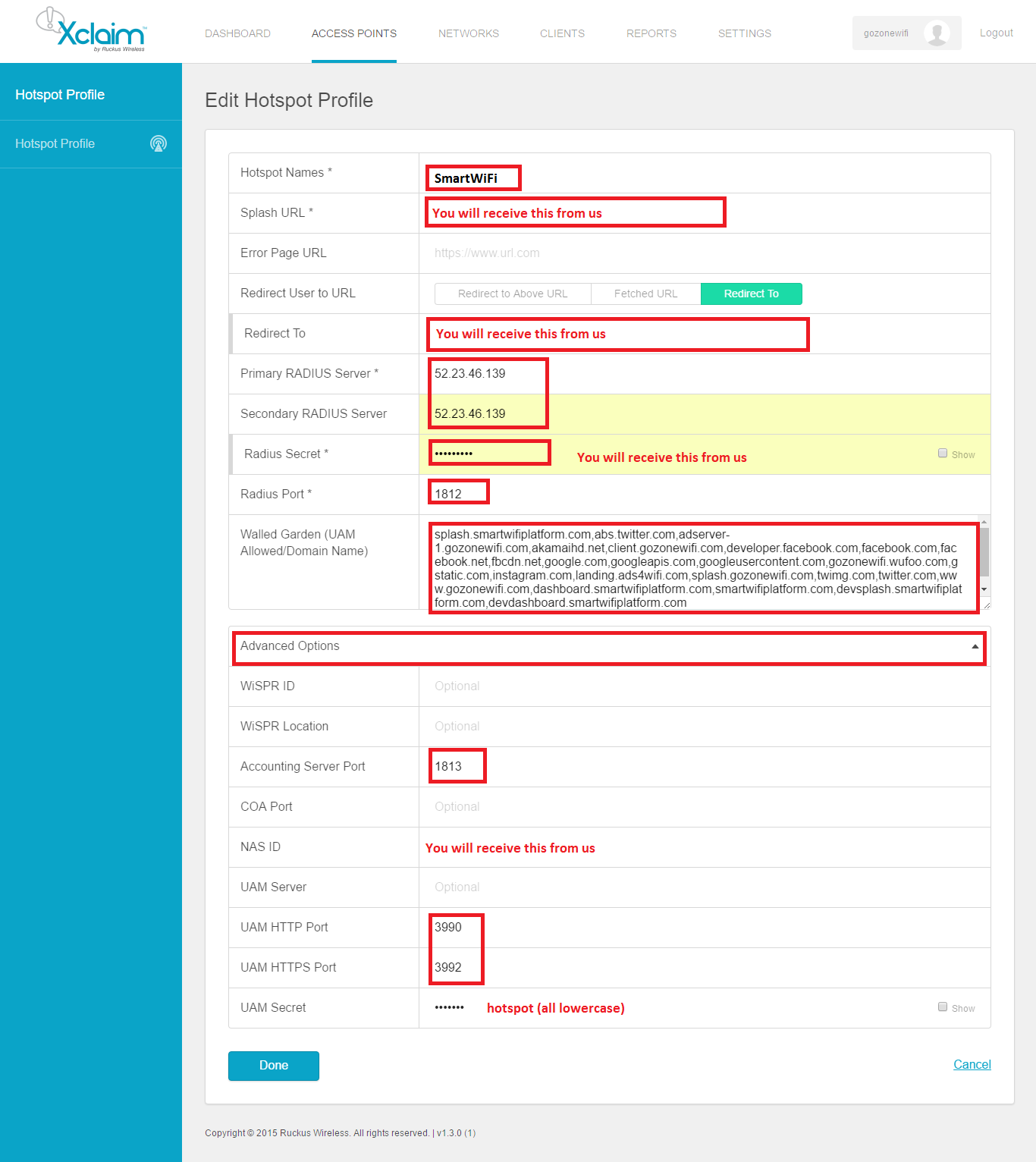
- Hotspot Profile Information
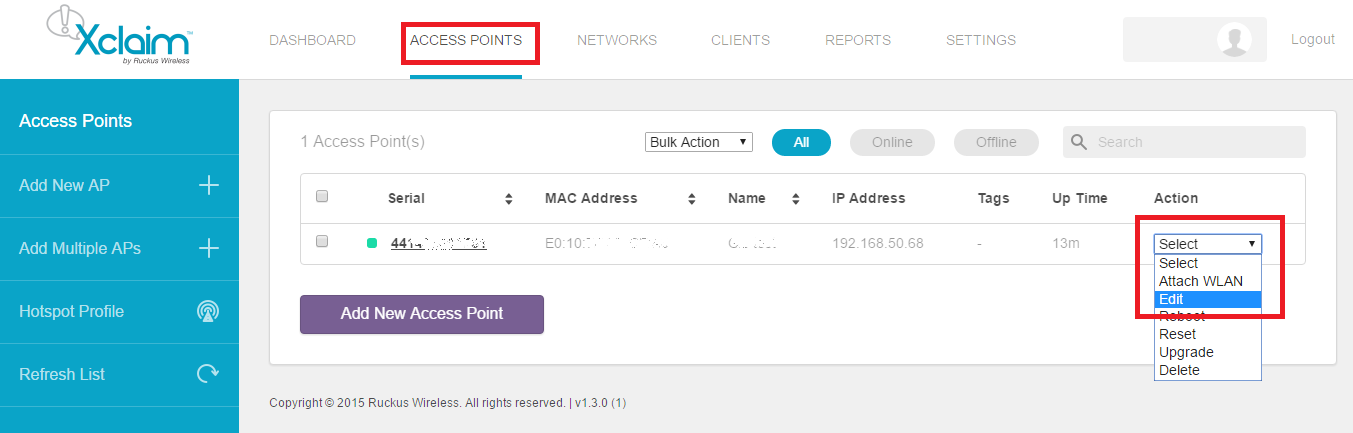
- Edit the Access Point to associate the Hotspot settings onto it.
For the default Walled Garden entries CLICK HERE and scroll down to the entries using wildcards.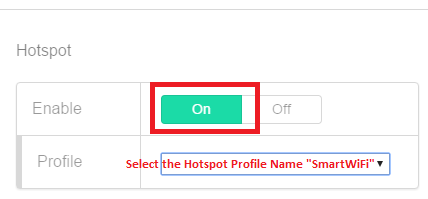
- That should be it! Wait a few minutes for the configuration to update to the access point then connect with your device and you should receive the Splash page associated with the Hotspot.