
We do not recommend using the Classic Editor
- Recommended background image size: 1000×800 for optimal resolution on most devices.
- The Walled Garden must be adjusted to accommodate any external content included on the splash page.[/ht_message]
You may want to upgrade to the Drag-and-Drop editor style which gives you more features, flexibility and a simpler process. Go to Network ➡️ Splash Pages and click edit on the desired splash page.
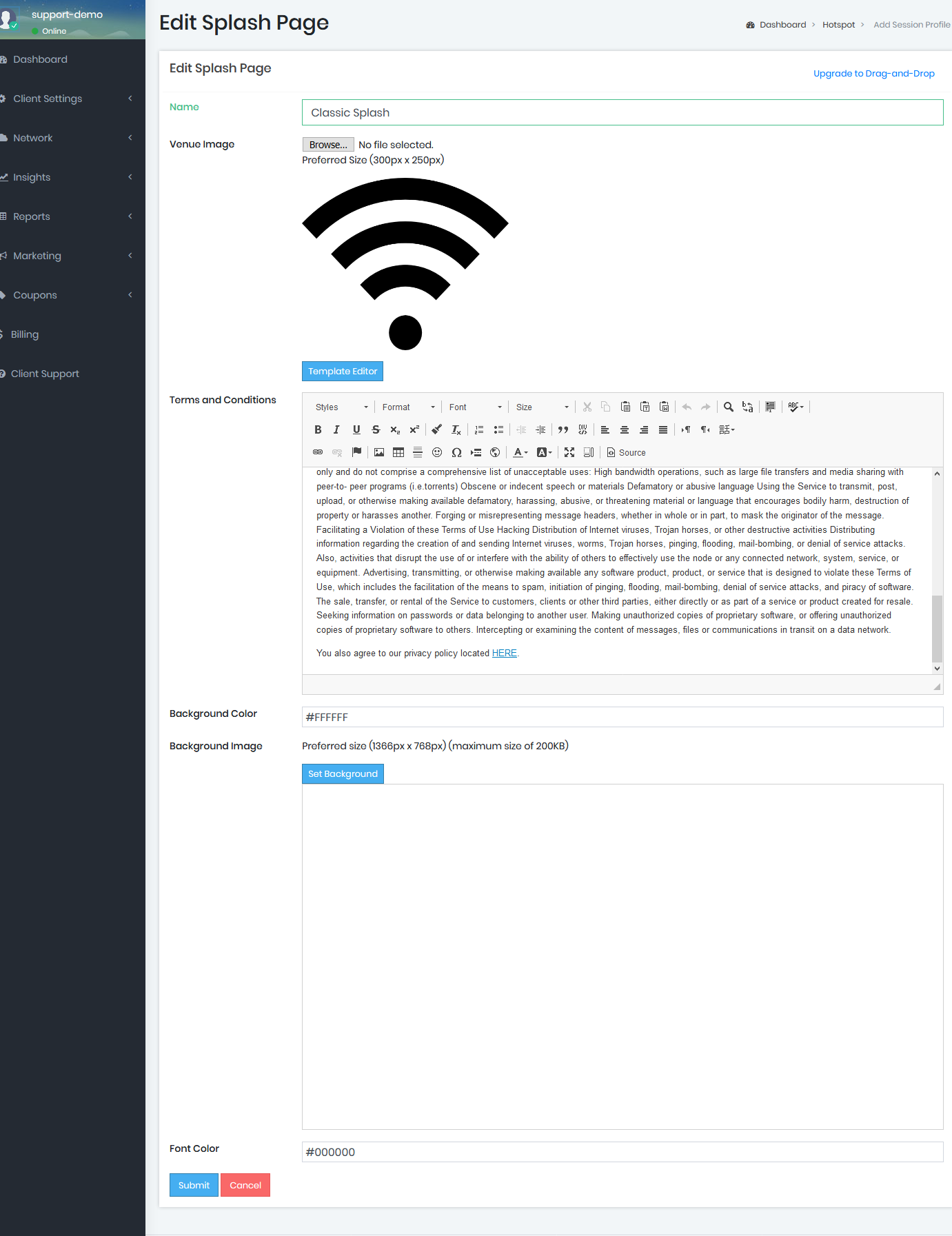
- Name: This is the Name of the Splash Page. You can change this name if you like.
- Venue Image: This is the image that will be displayed to guests by default if there is not a venue image assigned in the actual Hotspot menu. This allows you to have a "master" image for the venue and as you want to promote special events or change the image per Hotspot you can do that and simply delete the image in the Hotspot editor when your event/promotion is done.
- Text: The text here will be displayed on your splash page as long as you've included the merge field on your splash page. (By default, all of our built-in templates have the merge field included so the text here will be displayed to your guests upon connection.)
- Edit Splash Page Button: Click this button to change the template or to customize your splash pages using your own HTML code. (We do not recommend making any changes to the HTML unless you are an experienced web developer.)
- Terms and Conditions: We include some standard terms and conditions to be displayed to your guests when they click to read them. You can edit the terms and conditions here to accommodate your business policy and legal requirements.
- We do not guarantee that our default terms and conditions will satisfy all jurisdictions and expressly exclude this is our terms with you. Be sure to check with your legal counsel to make sure you have addressed any potential risks.
- Background Color: You can click here if you'd like to change the default background color. This is only used on certain templates. You can include our merge key on your custom HTML to include these colors if you would like.
- Text Color: You can click here if you'd like to change the default text color. This is only used on certain templates. You can include our merge key on your custom HTML to include these colors if you would like.
Use our built-in templates or customize the splash page using your own HTML:
- To change the template or to customize the HTML, click the 'Template Editor' button.
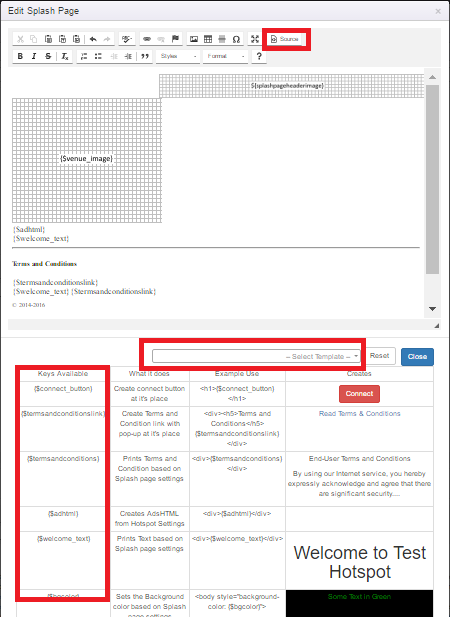
- You can make changes in the editor area such as adding/modifying text, adding new merge 'Keys' or even upload new images. To add keys, simply copy the Key from the available Key list below and paste in the editor at the desired location. The "Source" button will allow you to modify the HTML code completely.
HTML Developer note: You must embed any custom CSS in the HTML area. Externally-called CSS will not work. Any externally hosted content will not work unless the walled garden entries are updated on the hardware. - You can Select any of the included Templates by pulling-down the
- To preview the Splash page, you will need to click 'Close', then on the previous page click the 'Submit' button. Then select the Hotspot and click the 'Preview' icon. Come back to the editor to make any changes.
- Be sure to 'Submit' button whenever a change is made.
If you're using our classic-style splash page, we added an easy way to upgrade to the drag-and-drop splash page style. In the dashboard go to Network ➡️ Splash Pages and click edit on the splash page you want to upgrade. In the top right you will see a button to "Upgrade to Drag-and-Drop"

NOTE: You can safely click this link to take a look at the new editor and it won't affect your guest experience until you choose to save the new splash page.