The following instructions outline how to setup a Everest Networks Basecamp network for the Marketing4WiFi Platform. This guide covers details such as configuring RADIUS, walled garden entries, and captive portals. This guide assumes that your Basecamp controller is already operational and on a live network with adopted Access Points. Please make sure any firewall rules, web content filters, and other security measures have been configured to interface with the platform.
Log in to your Everest Basecamp controller.
-
-
- Click Wireless Networks, then in the top right click Add.
- Network Name: Smart WiFi
- SSID: (The name for your network) [ht_message mstyle="info" title="" show_icon="" id="" class="" style="" ]Please avoid special characters as they may impact Splash page presentation and authentication. [/ht_message]
- Security: Open
- Captive Portal Enabled: Yes
- Splash URL: You will be provided this
- Integrator: Third Party
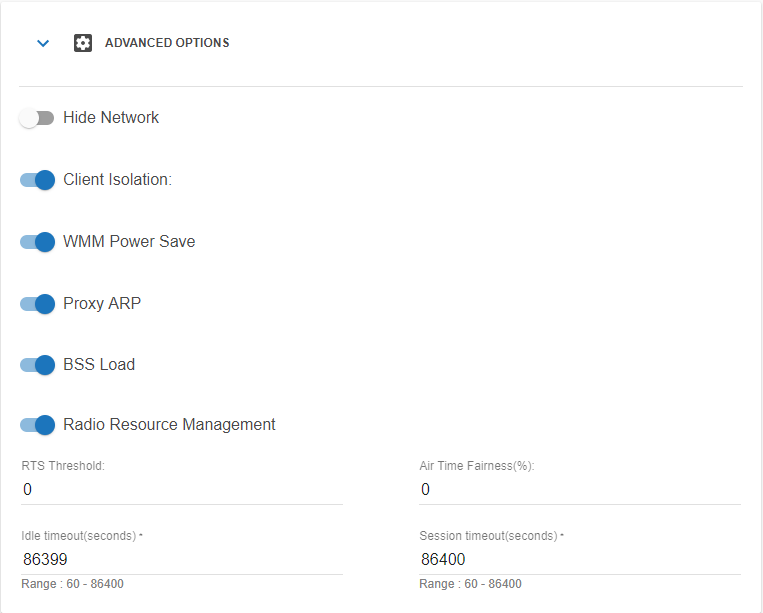
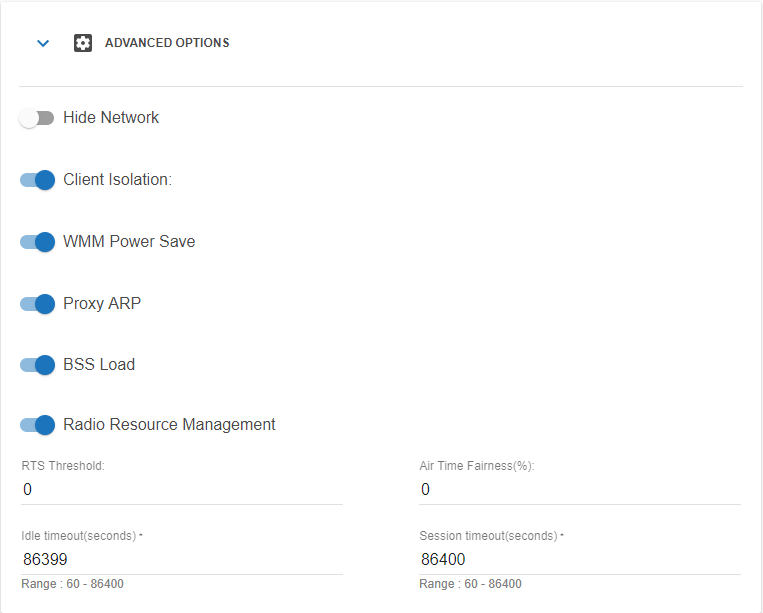
- Advanced options-
- Client Isolation: Enabled
- Idle Timeout: 86399
- Session Timeout: 86400
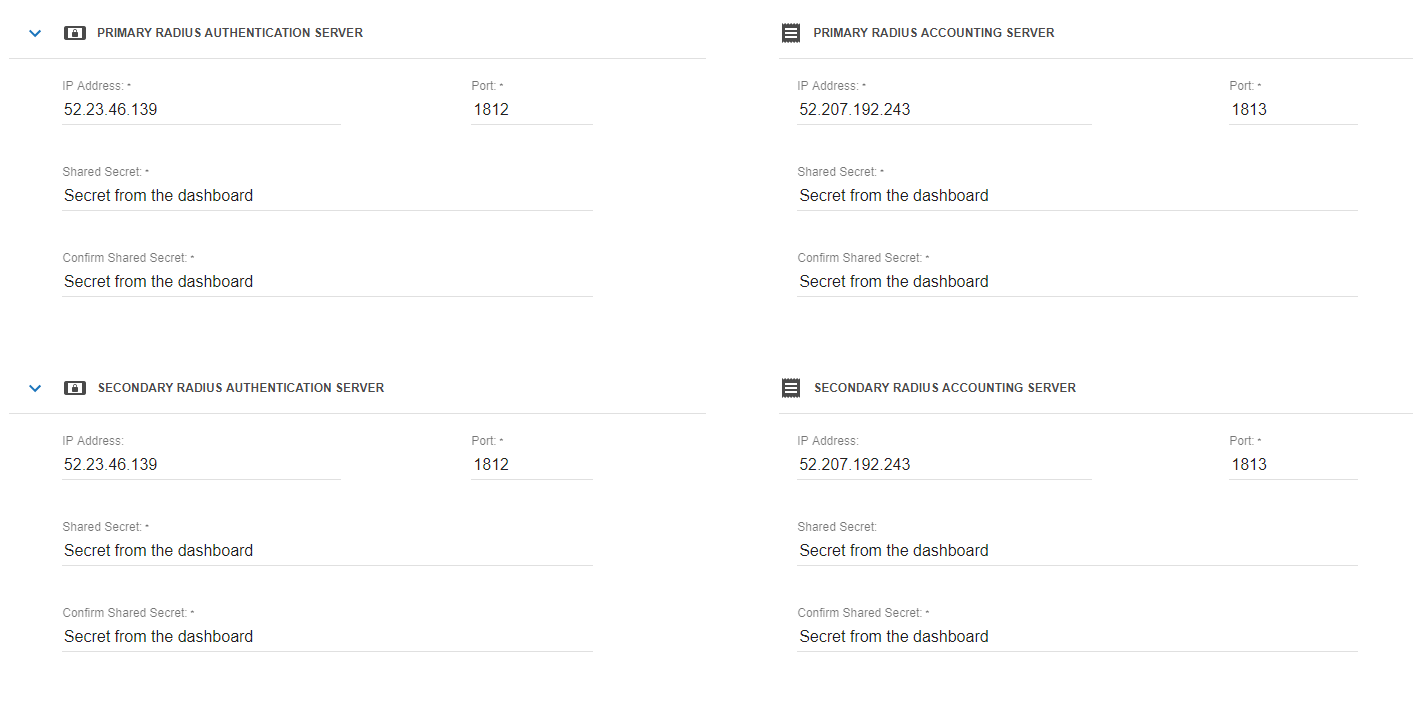
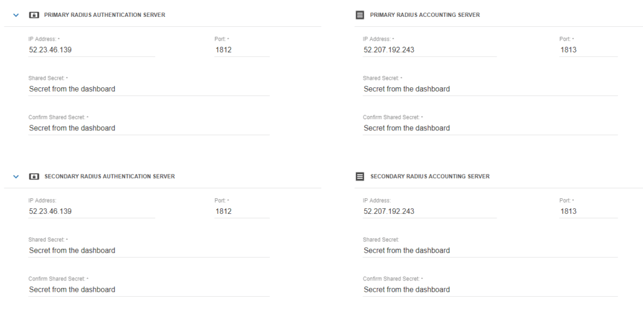
- Primary Radius Authentication Server
- IP Address: You will be provided this
- Port: 1812
- Shared Secret: You will be provided this
- Confirm Shared Secret: You will be provided this
- Primary Radius Accounting Server
- IP Address: You will be provided this
- Port: 1813
- Shared Secret: You will be provided this
- Confirm Shared Secret: You will be provided this
- Secondary Radius Authentication Server
- IP Address: You will be provided this
- Port: 1812
- Shared Secret: You will be provided this
- Confirm Shared Secret: You will be provided this
- Secondary Radius Accounting Server
- IP Address: You will be provided this
- Port: 1813
- Shared Secret: You will be provided this
- Confirm Shared Secret: You will be provided this
- Save the network.
- Click Wireless Networks, then in the top right click Walled Garden. Add each of the wildcard walled garden entries found in the Default Walled Garden list as a Domain.
- Click Wireless Networks, then click the Smart WiFi network you just created, select the AP's you wish to use with this configuration and then click Apply to APs.
- Click Wireless Networks, then in the top right click Add.
-