
Creating your own Survey
- Login to your Smart WiFi account
- Using the navigation panel to the left select Marketing ➡️ Surveys
- Now on the Survey List page, you can click Add Survey in the top right corner
- Use the builder Elements and Tools to create and customize your own Survey
- Press Save at the bottom of the builder
- Enter a name for your Survey
- Press Submit
Builder Elements and Tools
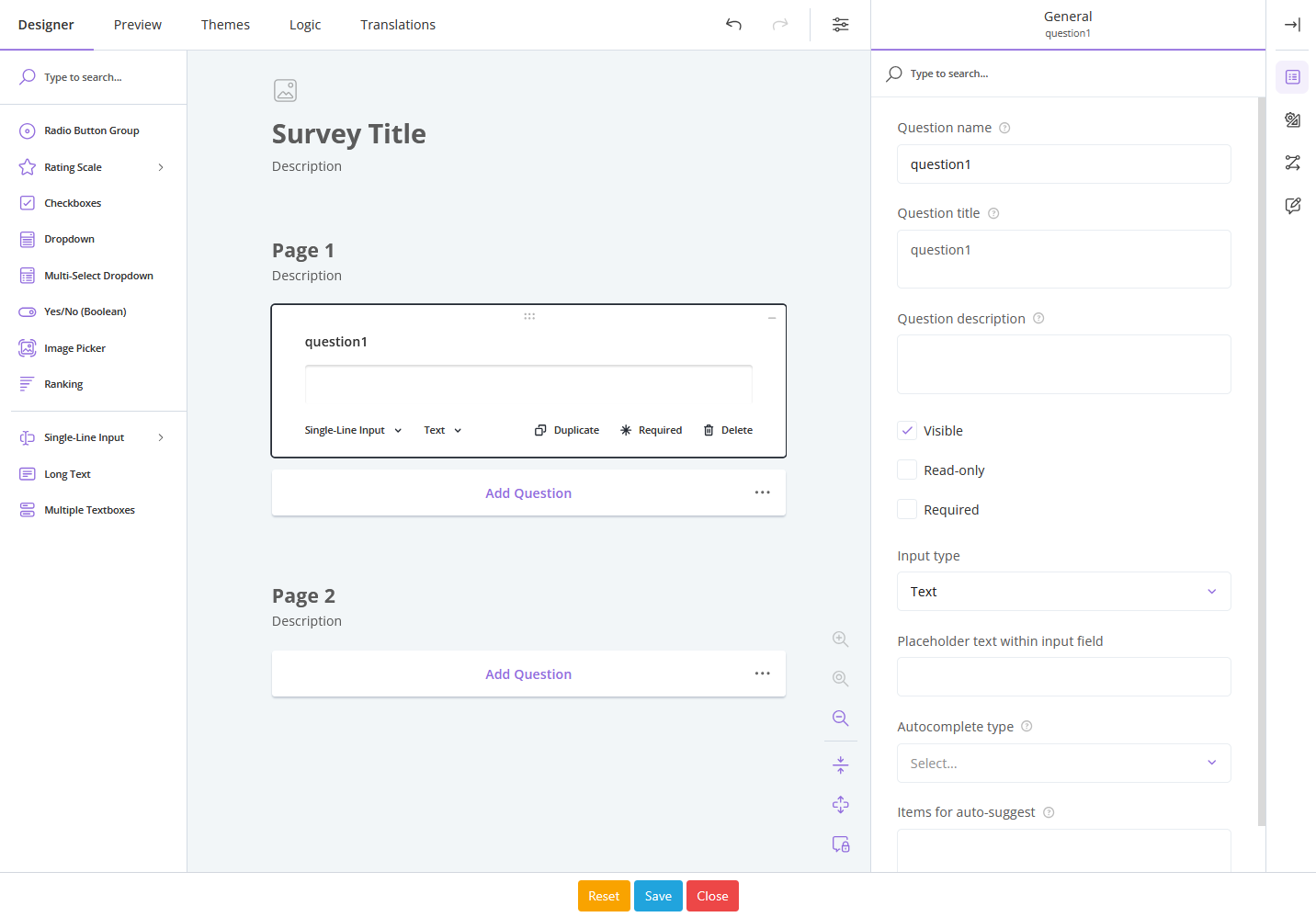
- Designer
- Question Type
- Radio Button Group
- Rating Scale
- Checkboxes
- Dropdown
- Mutli-Select Dropdown
- Yes/No (Boolean)
- Image Picker
- Ranking
- Single-Line Input
- Long Text
- Multiple Textboxes
- Page(s) layout
- Survey Title
- Add Question
- Add Page
- Element Settings: This section appears to the far right and the options offered will change based on what element you select in the Page layout. Select a question to customize the details of the question, or select a whole page to customize the details of the page.
- Question Type
- Preview
- This is a functional mobile view preview of your current Survey. Details entered here will not be collected, but the preview will function the same as one of your guests will see it.
- Themes
- General: This page allows you to select included default themes that customize the look of your Survey. Once applied you can make further modifications to the design.
- Transparent: This is a special Theme included in the builder to allow users who want their survey to have a transparent background so that the content behind the page will be visible. Do not change the background image or background color after selecting this template if you want a transparent background.
- Header: Set advanced to customize the font in the Headers of your Survey.
- Background: Select a background color or upload your own background image for your Survey.
- Appearance: This section allows you to customize the individual elements on your Survey page.
- General: This page allows you to select included default themes that customize the look of your Survey. Once applied you can make further modifications to the design.
- Logic
- Use at your own risk. Examples coming soon!
- Translations
- On the Translations tab you can select the language(s) you would like to include auto translation support to your Survey
- Login to your Smart WiFi account
- Using the Navigation panel to the left select Campaigns > Surveys
- Click the dark grey Embed icon next to your desired Survey
- Click the blue Copy button inside the displayed pop up
- Paste this embed code on any site you wish and it will be displayed when the page loads.
Surveys on Splash Pages
Follow these steps to place an existing Survey onto a Splash Page.
- Login to your Smart WiFi account
- Using the Navigation panel to the left select Network > Splash Pages
- Click the blue edit icon next to your desired Splash Page
- Select the option 'Surveys' using the Template and Element selector to the right
- Drag your desired Survey content block onto the Splash Page.
- Press Save and Submit the page.
- The following behavior should be expected when using a Survey on a Splash page.
- After completing a Survey and pressing the Submit button on a Splash Page (or the last Page of a Guest Flow) the page will submit and attempt to authenticate the Guest.
- After completing a Survey and pressing the Submit button a Splash Page that is not the last page of a Guest flow, the page will continue onto the next page of the Guest Flow.
- Question: Are there limits to the number of Surveys I can build?
- Answer: No, your Smart WiFi account can build unlimited Surveys.
- Question: Are there limits to the amount of Surveys answers my account will store?
- Answer: There are no limits to the amount of Surveys answers your account will store.