- Uploaded images have a max file size of 1 MB.
- Special characters, symbols, accented characters, non-latin script, and Web Emojis are supported.
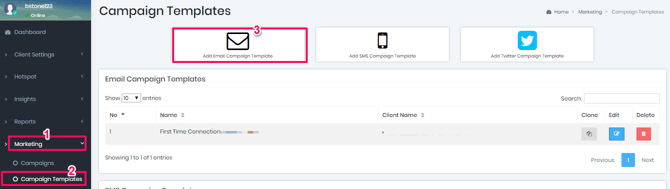
Under the Marketing tab, click on "Campaign Templates" and select "Add Email Campaign Templates"
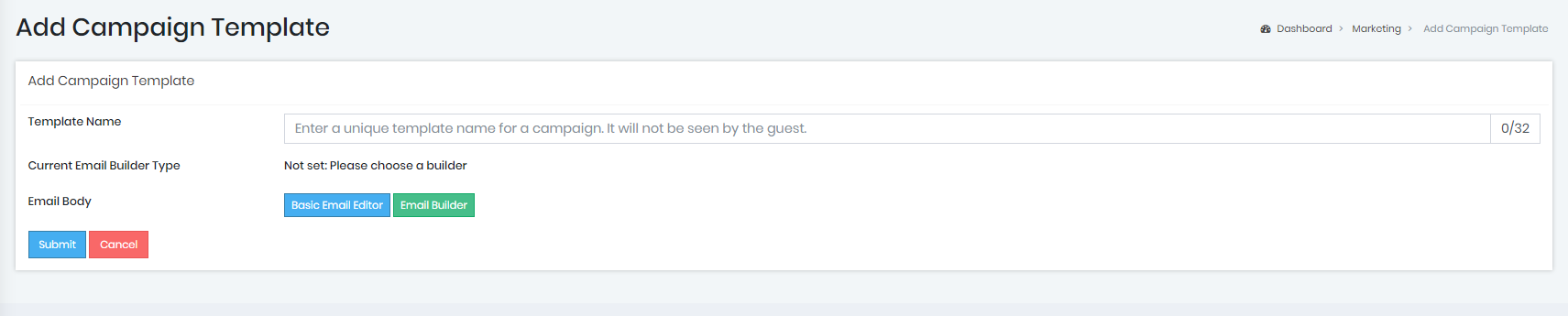
Assign a template name to your creative and then click on the green button "Email Builder". This guide based on using the drag and drop editor. To use the HTML editor click the blue "Basic Email Editor". The current Email builder type will be updated after you submit your campaign template.
Use the drag & drop functionality to create your own Smart E-mails or use the pre-loaded templates:
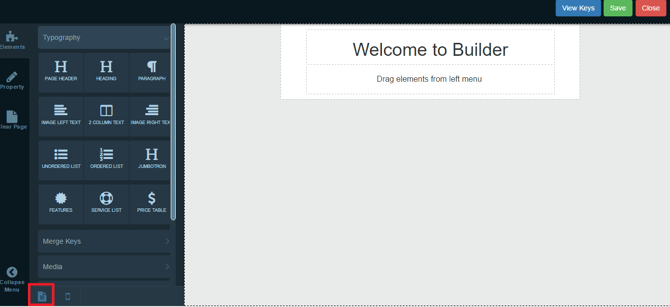
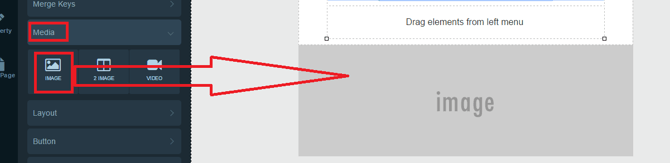
To add your own image - Drag the Image into your e-mail
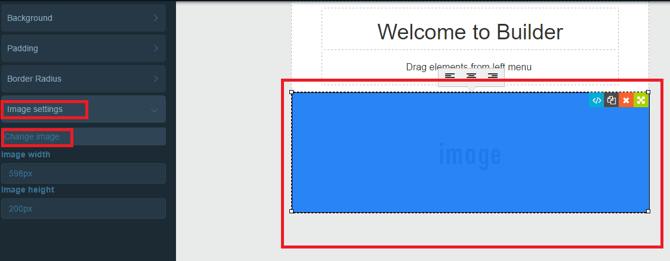
Click the Image area, and look at the menu on the left. Click on Image Settings, then the Change Image button:
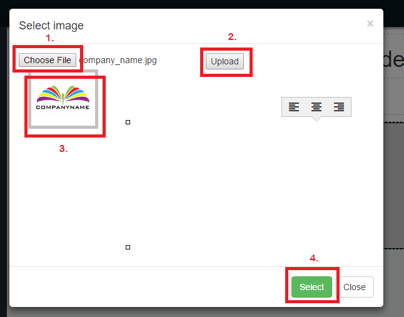
- Choose an image from your local computer
- Click Upload
- Once it's uploaded, click on the image to select it
- Then click 'Select'
Once you're done creating your e-mail, click the 'Save' button.
Followed by the 'Submit' button.
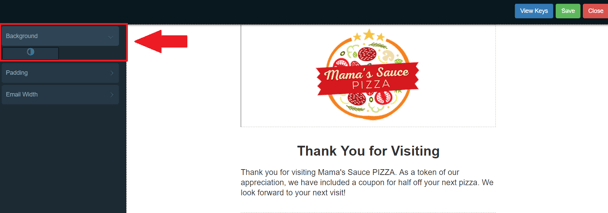
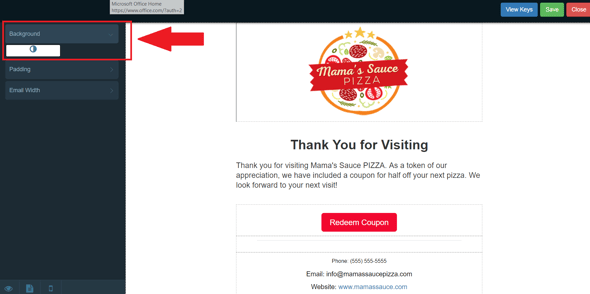
Background Image Note: It is important to adjust the background color to your specification as the FINAL step when creating an email design. Setting the background color before finishing your design will result in the background reverting back to the transparent setting despite the background showing as the color you initially selected. Not setting the background color last will result in emails being sent out in a grey/transparent color.